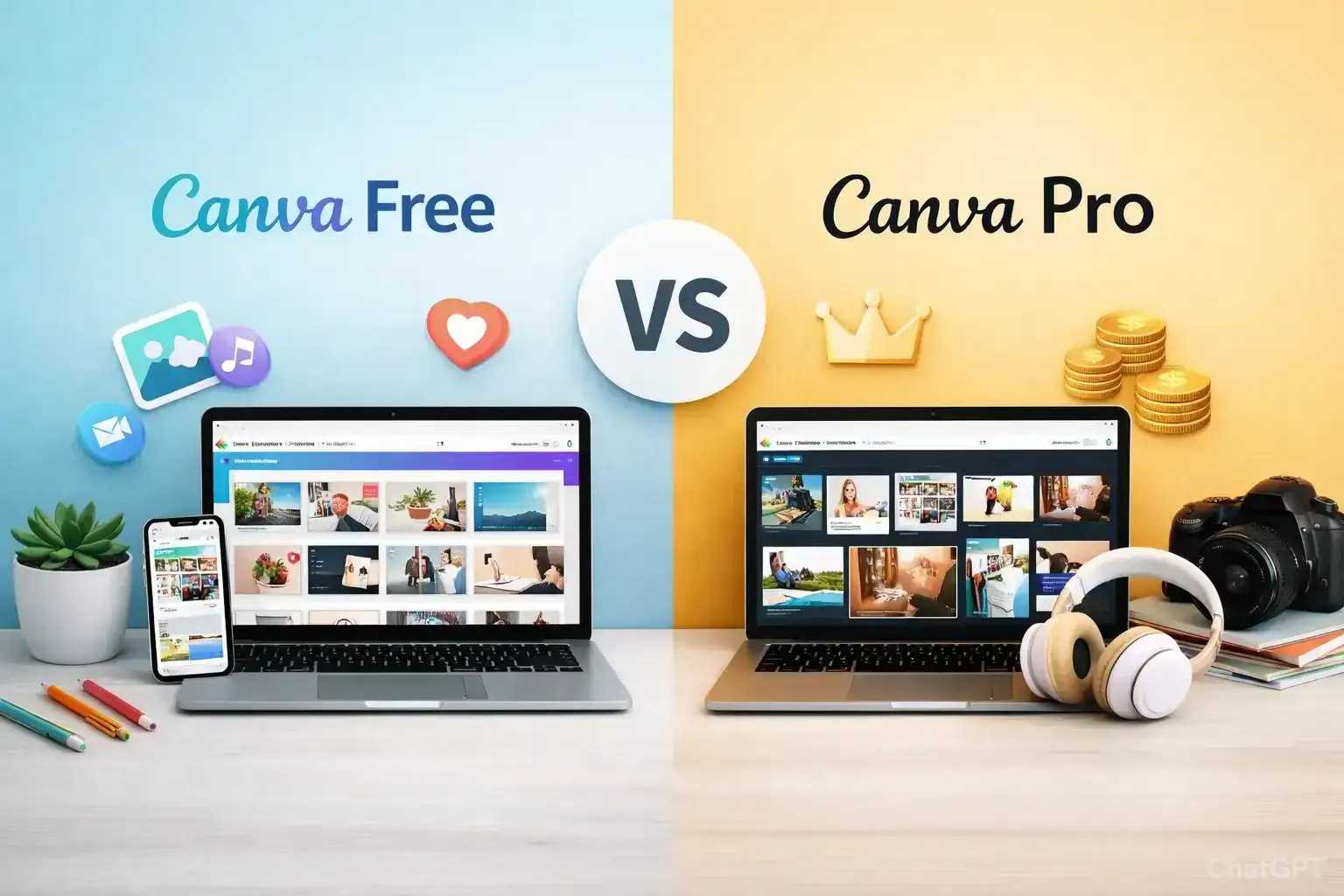
Canva Free vs Pro comparison with split background
Table of Contents
Canva has become a household name for both amateurs and professionals who need to design eye-catching graphics, videos, presentations, and more. With its simple drag-and-drop interface, Canva has made it easier than ever to create beautiful designs, whether for personal projects, social media content, or professional presentations.Wondering which Canva plan to choose? Compare Canva Free vs Pro to see which version best suits your needs with expert insights.
But as the platform continues to grow, Canva now offers two main plans—Canva Free and Canva Pro. While Canva Free serves as an excellent entry point for beginners, Canva Pro boasts powerful features that can greatly enhance your design process. But how do you decide between the two? Let’s dive deep into the details and help you determine which one is the best choice for you.
What Is Canva?
Before we dive into the comparison, let’s take a moment to understand what Canva is and why it has become so popular.
Canva is a user-friendly graphic design platform that allows users to create a wide variety of visual content, such as social media posts, presentations, infographics, posters, and more. The platform provides templates, stock images, icons, fonts, and other design elements that you can easily customize to suit your needs. It’s available both as a web app and mobile app, making it accessible anywhere.
Canva has millions of users worldwide, ranging from individuals and small business owners to large corporations and marketers. Its simple drag-and-drop interface allows users with little to no design experience to produce professional-quality designs in minutes.
Advertisement
Canva Free vs Canva Pro: An Overview
Canva offers two main plans: Canva Free and Canva Pro. Here’s a brief overview of both:
Canva Free: This is the basic version of Canva. It’s available to anyone and gives you access to a broad range of features, including thousands of templates, a selection of free images and elements, and basic editing tools.
Canva Pro: Canva Pro is a paid subscription that unlocks advanced features, including premium templates, brand kits, a larger image library, and other tools aimed at improving the design process. Pro also allows for team collaboration, making it ideal for businesses or marketing teams.
Advertisement
Key Features: Canva Free vs Pro
Let’s take a closer look at the features of Canva Free and Pro to help you decide which plan is right for you.
Canva Free: With the free version, you get access to thousands of templates for social media, presentations, flyers, and more. However, some templates and elements are locked behind the Pro version, limiting your creative options.
Canva Pro: Canva Pro unlocks over 75 million stock images, photos, videos, and design elements. You’ll also get access to exclusive templates, advanced filters, and design assets that can make your creations stand out.
2. Branding Features
Canva Free: The free version lets you create designs but lacks the ability to save and use brand-specific colors, fonts, and logos. This can be inconvenient if you are working on projects for a business or need to maintain brand consistency.
Canva Pro: With Canva Pro, you can create a “Brand Kit,” which allows you to upload logos, set your brand colors, and choose custom fonts. This is especially useful for businesses or anyone looking to maintain consistent branding across their designs.
3. Collaboration Tools
Canva Free: The free version allows basic collaboration but is limited. You can share designs and work on them with others, but you don’t have access to features like comments or permissions management.
Canva Pro: Pro users can collaborate with team members in real-time, leave comments, and assign roles and permissions, making it a better choice for businesses or teams working on shared projects.
4. Storage Space
Canva Free: Free users get 5GB of cloud storage to save your designs.
Canva Pro: Pro users get 100GB of storage, allowing you to save more files and designs without worrying about running out of space.
5. Export Options
Canva Free: You can download your designs in various formats (PNG, JPG, PDF), but the free version doesn’t allow for transparent background downloads or animated PNGs.
Canva Pro: With Canva Pro, you can export designs with a transparent background (useful for logos), and download your designs as animated GIFs or videos.
6. Content Planner
Canva Free: Free users don’t have access to the Content Planner, which allows you to schedule and post content directly to your social media platforms.
Canva Pro: Canva Pro offers a content planner that integrates with your social media accounts, allowing you to schedule posts directly from Canva, saving time and increasing your workflow efficiency.
Advertisement
Step-by-Step Guide: How to Get Started with Canva Free vs Pro
Getting Started with Canva Free
Sign Up: To start using Canva Free, all you need to do is sign up with your email address or connect your Google or Facebook account.
Choose Your Template: After logging in, you’ll be presented with a variety of templates to choose from. Select a template that fits your needs.
Customize Your Design: Use Canva’s intuitive drag-and-drop editor to change the text, colors, and images on your template. You can also upload your own images and graphics.
Download Your Design: Once you’re satisfied with your design, click the “Download” button to save your file. You can choose from various file formats like PNG, JPG, or PDF.
Getting Started with Canva Pro
Sign Up for Canva Pro: Start by signing up for a Canva Pro account. You can do this by upgrading your existing Canva Free account to Pro.
Set Up Your Brand Kit: After signing up, create your brand kit by uploading your logo, setting your brand colors, and choosing your custom fonts.
Explore Premium Templates and Elements: With Canva Pro, you have access to millions of premium templates and design elements. Choose your desired template and customize it with the tools available.
Collaborate with Team Members: Invite team members to your project, assign roles, and collaborate in real-time. You can also use the Content Planner to schedule posts.
Advertisement
Pros and Cons of Canva Free vs Pro
Canva Free
PROS
Completely free to use
Access to thousands of templates and design elements
Simple and user-friendly interface
CONS
Limited access to premium features and design assets
Lack of advanced branding tools and storage space
Cannot download transparent backgrounds or animated designs
Canva Pro
PROS
Access to over 75 million stock images, videos, and design elements
Advanced branding tools (Brand Kit)
Enhanced collaboration and storage options
Transparent background downloads and animation capabilities
CONS
Requires a paid subscription
Some users may find the advanced features overwhelming
Advertisement
Who Should Use Canva Free vs Canva Pro?
Canva Free:
Beginners: Canva Free is an excellent choice for beginners who want to try graphic design without spending any money. It’s perfect for creating social media posts, simple flyers, and personal projects.
Casual Users: If you only need to create occasional designs and don’t need advanced features like branding tools or extensive storage, Canva Free is sufficient.
Canva Pro:
Businesses and Teams: Canva Pro is ideal for businesses and teams that need advanced collaboration tools, brand consistency, and the ability to create professional designs at scale.
Marketers and Content Creators: If you’re a content creator or marketer who needs to schedule posts and create high-quality visuals for campaigns, Canva Pro offers the extra features you need to streamline your workflow.
Advertisement
Common Mistakes & Solutions
Mistake 1: Using Too Many Stock Images
Solution: While Canva provides access to millions of images, be mindful of how many you use, as too many can make your design look cluttered. Stick to a few key visuals that enhance your message.
M 2: Ignoring Brand Consistency
Solution: Use Canva Pro’s Brand Kit to ensure that all your designs are consistent with your brand’s colors, fonts, and logos. This is essential for creating a professional look across all your materials.
M 3: Overcrowding the Design
Solution: Simplicity is key. Use white space effectively and keep your design elements minimal to ensure that your message is clear and easy to understand.
Frequently Asked Questions
Yes, you can access your Canva Pro account on any device by logging into your account. Canva’s cloud-based platform makes it easy to switch between devices.
While Canva Free is a great tool for basic designs, businesses will benefit from Canva Pro’s advanced branding and collaboration tools, making it more suitable for professional use.
Yes, Canva offers a 30-day free trial for Canva Pro, allowing you to explore all the premium features before committing to the subscription.
Yes, Canva allows you to design print materials like business cards, brochures, and posters. Canva Pro gives you higher-quality printing options and more control over your print files.
Advertisement
Final Expert Verdict
So, which is best—Canva Free or Canva Pro? It ultimately depends on your needs.
Canva Free is perfect for individuals who need to create simple designs, personal projects, or occasional social media posts.
Canva Pro is ideal for businesses, content creators, and marketers who need advanced tools like brand kits, team collaboration, and an extensive library of assets.
If you’re just starting out and need a no-cost solution, Canva Free will serve you well. However, if you want to take your design work to the next level with professional features, Canva Pro is a worthwhile investment.
Minal Hossan is a technology editor and developer at EverEdgeHub, specializing in smartphones, web technologies, and modern digital products. With hands-on experience…



 By Minal HossanPublished on February 15, 2026