

Tech Trending

Tech News AI Tools Gadgets Tech Tips Reviews Smartphones Software & Apps

Finance Trending

Finance Fintech

Quick Links

About Us Contact Us Privacy Policy Terms & Conditions Disclaimer

Fix Android Touch Problem – 21 Proven Solutions to Restore Touchscreen

By Minal Hossan Minal Hossan Minal Hossan is a technology editor and developer at EverEdgeHub, specializing in smartphones, web technologies, and modern digital products. With hands-on experience in WordPress, front-end development, and modern web frameworks, he focuses on real-world testing, performance analysis, and practical user experience. Minal regularly publishes in-depth tech reviews, comparisons, and tutorials to help users make informed and confident decisions in the fast-evolving tech landscape. · Published on December 6, 2025

Fix Android Touch Problem – 21 Proven Solutions to Restore Touchscreen

Introduction : fix android touch problem

If you’re struggling to fix android touch problem and your screen is not responding, freezing, or tapping itself, you’re not alone. Thousands of Android users face touchscreen issues every day — and surprisingly, most of them can be fixed without replacing the display.

This guide provides the most complete, step-by-step, solution to diagnose and repair unresponsive, partially working, or ghost-touch screens on Android. Whether your touch stopped working during charging, after a fall, due to moisture, or after a software update, this article will walk you through everything you need to know.

Why Touchscreen Problems Occur on Android

Most people assume that when the touch stops working, the entire display is damaged. But that’s not true.

Common reasons behind touch problems:

  • Software glitch
  • Faulty charging cable
  • Moisture inside display
  • Overheating
  • Corrupted system files
  • Broken or loose touch flex
  • Touch IC (integrated circuit) malfunction
  • Damaged tempered glass
  • Dust or oil on screen
  • Defective apps
  • Hardware drop shock

Knowing the cause helps you properly fix android touch problem without wasting money.

#️⃣ Symptoms of Android Touchscreen Issues

Your screen may suffer from:

  • Partial touch not working
  • Ghost touch
  • Touch responding slowly
  • Apps opening automatically
  • Jittery or floating touches
  • Screen freezing randomly
  • Screen unresponsive only at edges
  • No touch response at all

Each symptom points to a different type of issue and can be fixed using the steps below.

#️⃣ Quick Checklist Before You Try Anything

✔ Remove gloves
✔ Clean the screen
✔ Remove tempered glass
✔ Unplug charger
✔ Restart phone
✔ Remove phone case

If the problem continues, follow the detailed fixes below.

🔧 Fix 1: Force Restart to Fix Android Touch Problem

This works for most temporary touchscreen freezes.

How to do it:

  • Press Power + Volume Down for 10–15 seconds.
  • Wait for reboot.

This clears temporary system lockups.

🔧 Fix 2: Remove Tempered Glass

Thick or damaged glass blocks electrical signals.

  • Remove the screen protector
  • Clean the screen
  • Test touch again

Many touch issues disappear instantly.

🔧 Fix 3: Clean the Screen Properly

Use:

  • Microfiber cloth
  • 70% isopropyl alcohol (optional)

Avoid chemicals like detergents or glass cleaners.

🔧 Fix 4: Disconnect Charger (Ghost Touch Fix)

If your screen touches itself while charging, the cable or charger is faulty.

Use:

  • Original charger
  • Certified cable

🔧 Fix 5: Check Charging Port for Dust

Dust in the port causes ghost touches.

Clean carefully using:

  • Soft brush
  • Wooden toothpick
  • Compressed air

Never use metal pins.

🔧 Fix 6: Reduce Overheating

Overheating affects digitizer performance.

To cool down:

  • Stop gaming
  • Remove case
  • Keep under fan
  • Avoid charging while playing games

🔧 Fix 7: Boot in Safe Mode (App Conflict Check)

Sometimes apps interfere with touch.

Steps:

  1. Hold the power button
  2. Long press “Power Off”
  3. Select Safe Mode

If touch works here → app issue.

🔧 Fix 8: Uninstall Problematic Apps

Remove:

  • Launchers
  • Floating apps
  • Screen overlay apps
  • Battery savers
  • Game boosters

🔧 Fix 9: Calibrate Touchscreen

Install:

  • “Touchscreen Calibration”
  • “MultiTouch Tester”

This helps fix touch accuracy issues.

🔧 Fix 10: Enable High Touch Sensitivity

Especially useful if you use tempered glass.

Settings → Display → Touch Sensitivity → ON

🔧 Fix 11: Reset Accessibility Touch Settings

Disable:

  • Tap duration
  • Assistant Menu
  • Ignore repeated touches

🔧 Fix 12: Remove Moisture

Place phone in:

  • Rice
  • Silica gel
  • Dry box

Keep 12–24 hours.

🔧 Fix 13: Update or Downgrade Software

Buggy updates may break touch response.

Steps:

  • Update system
  • If issue started after update → downgrade firmware

🔧 Fix 14: Reset Settings

This keeps your data safe.

Settings → System → Reset Options → Reset All Settings

🔧 Fix 15: Factory Reset

If nothing works, perform a full reset.
Backup your data first.

🔧 Fix 16: Use OTG Mouse (Touch Fully Dead)

If touch is 100% unresponsive:

  • Connect USB OTG
  • Attach computer mouse
  • Control phone
  • Backup files

🔧 Fix 17: Use ADB to Control Phone

If USB debugging was previously enabled, use ADB:

adb shell input tap x y
adb shell input text "hello"
adb shell input swipe

⚙️ Fix 18: Reseat Display Flex Cable

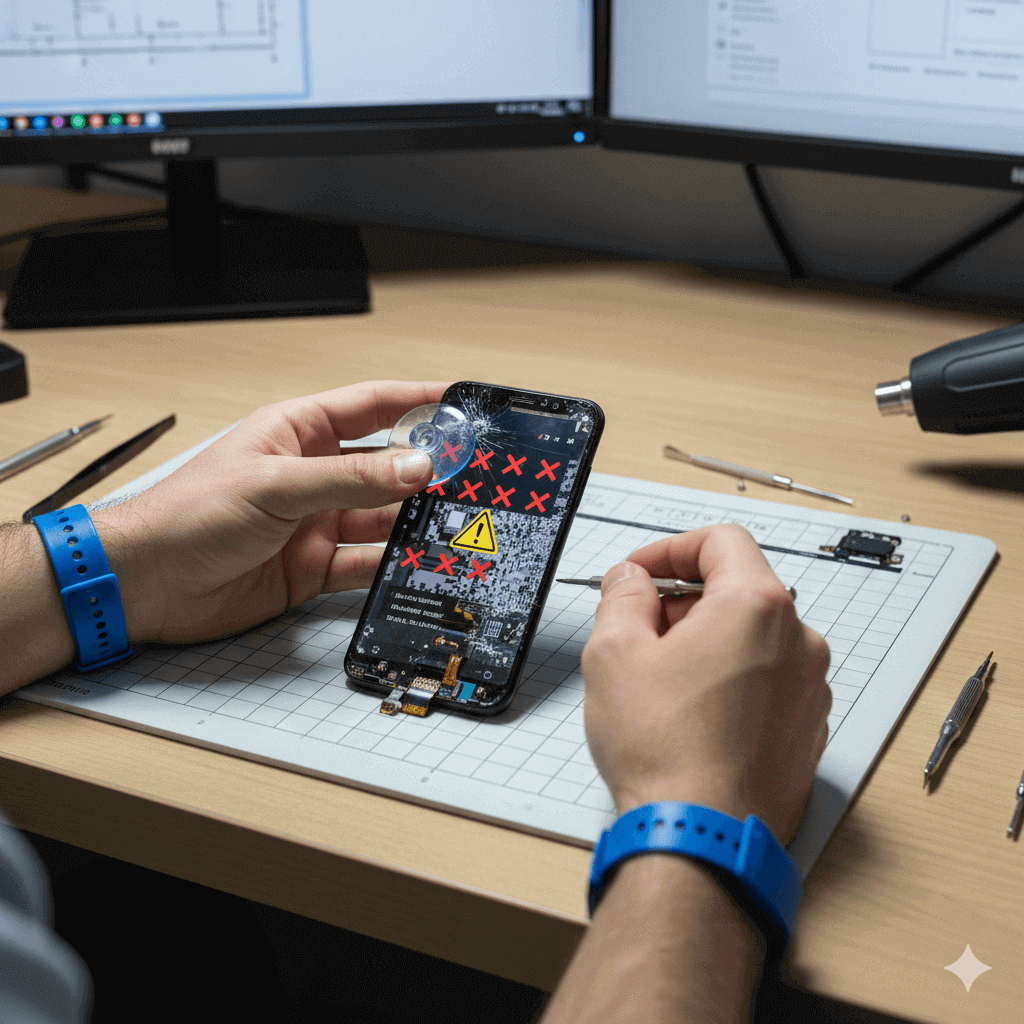
If the phone fell or was bent, display flex may be loose.

A technician can:

  • Open back panel
  • Reseat connector
  • Tighten screws
  • Clean dust

This often restores touch.

⚙️ Fix 19: Touch IC Repair (Digitizer IC Issue)

If the touch IC chip is damaged, a repair shop can:

  • Reheat
  • Reball
  • Replace IC

Much cheaper than screen replacement.

⚙️ Fix 20: Remove Magnetic Cover or Metal Plates

These interfere with the touchscreen sensor.

Remove them and test again.

⚙️ Fix 21: Low Battery Interference

Some Android devices reduce touch accuracy when battery <10%.

Charge your device to at least 20%.

🔍 Advanced Troubleshooting for Experts

These require professional knowledge:

  • Digitizer voltage check
  • PCB line testing
  • Board-level IC diagnosis
  • Screen connector pin testing
  • Software flashing using Odin/SP Flash Tool

If you’re not experienced, avoid DIY on these.

#️⃣ Prevention Tips to Avoid Touch Issues

✔ Avoid cheap chargers
✔ Keep phone dry
✔ Use high-quality screen protector
✔ Avoid sitting on your phone
✔ Don’t play games while charging
✔ Update software regularly

FAQs : fix android touch problem

Q1. How can I fix android touch problem permanently?

Avoid moisture, use quality chargers, and keep system updated.

Q2. Why is my Android touch not working after charging?

Your charger or cable is faulty.

Q3. Can a loose display cable cause touch failure?

Yes. Reseating the flex often solves it.

Q4. Can water cause ghost touch?

Absolutely. Moisture is one of the biggest causes.

Final Thoughts : fix android touch problem

If you follow all the steps above, you can successfully fix android touch problem without spending money on a new display. In many cases, touch issues come from software bugs, charging problems, moisture, or loose connections — not a damaged screen.

Leave a Comment